Your website’s favicon might seem like a small detail, but it’s an essential part of your brand identity. That tiny icon you see in browser tabs, bookmarks, and mobile search results helps users recognize and remember your site. So, if you’re looking to change or update your favicon in WordPress, you’re in the right place.
In this step-by-step guide, I’ll show you the most reliable way to change your favicon in any CMS: through the Root-directory of your website.
By the end of this article, you’ll have a clear, favicon happily showing on all your favourite platforms.
Change your favicon through the root of your website
This method is for users who want absolute control over how their favicon appears across all different browsers and devices. For this we will be using realfavicongenerator.net and the (free) WP File Manager plugin.
Prepare your favicon using RealFaviconGenerator.net
- Visit realfavicongenerator.net
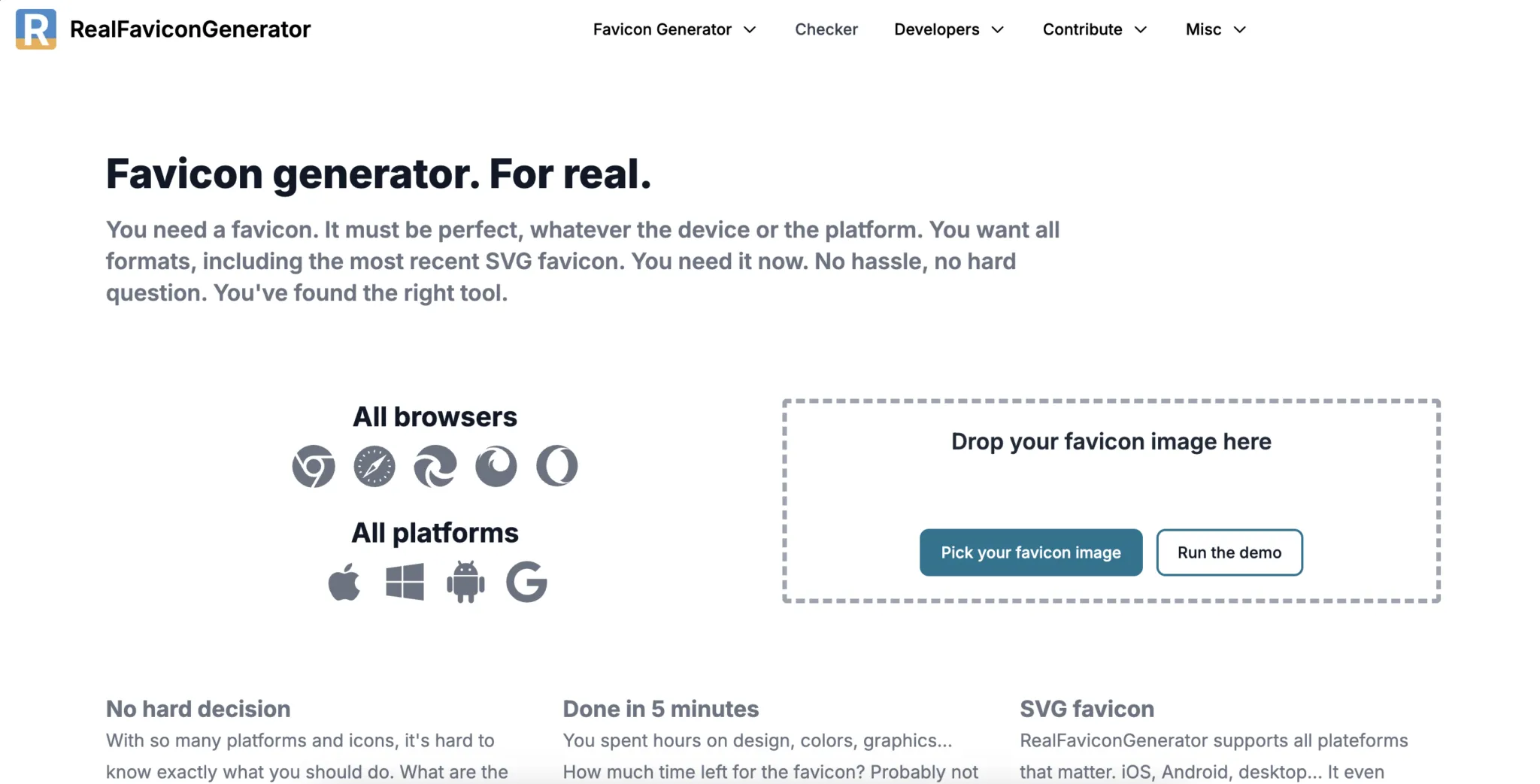
- Upload your favicon design, preferably in .png format
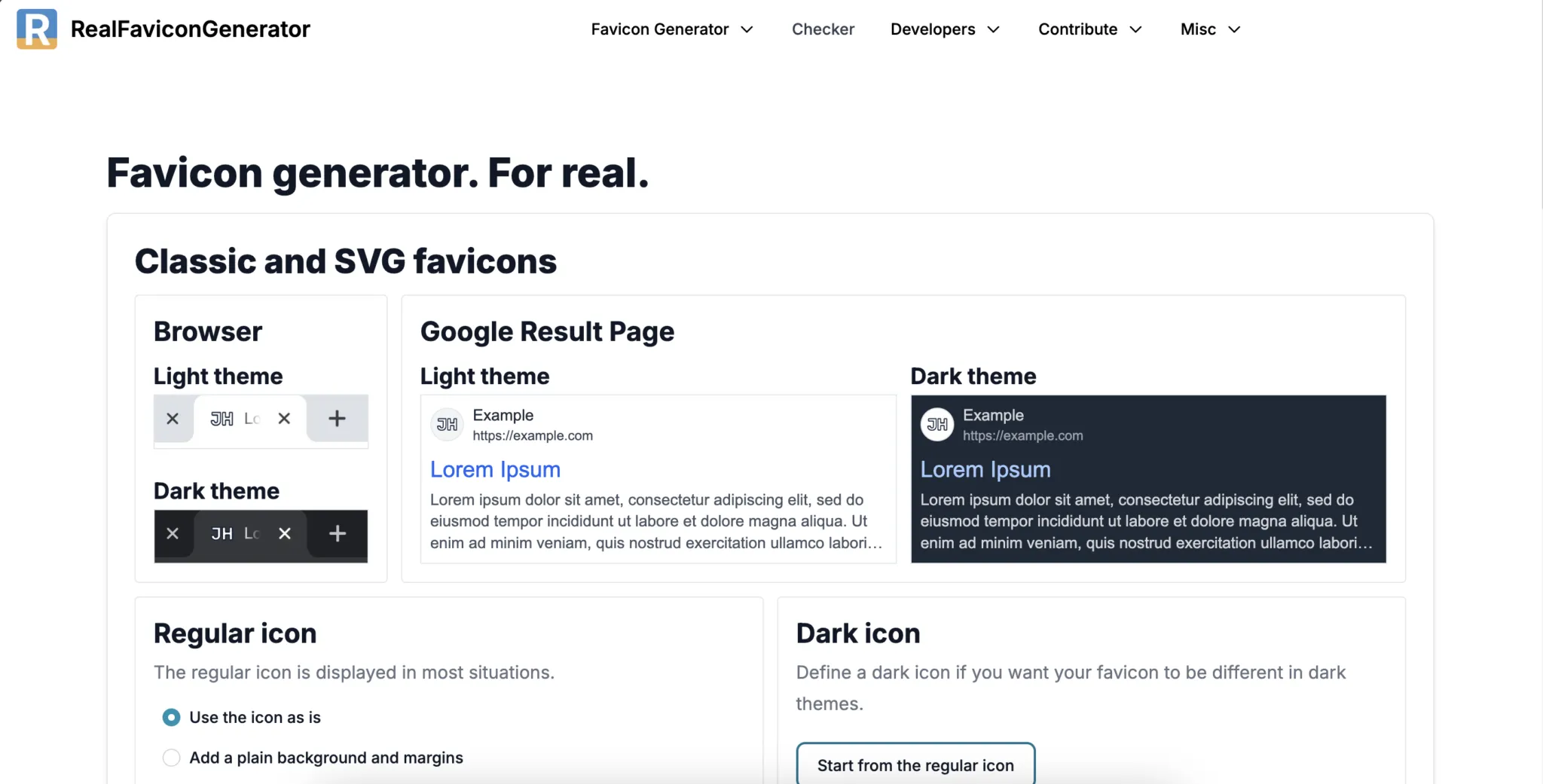
-
Customize your favican as you wish. You can change how it looks in dark mode, as an Apple Touch Icon and the Web app manifest.
-
Fill in the Favicon path. This is the path where we will upload your favicon-files. I recommend that you leave it as your root directory ’/’, because this is where the most browsers will look for your favicon.
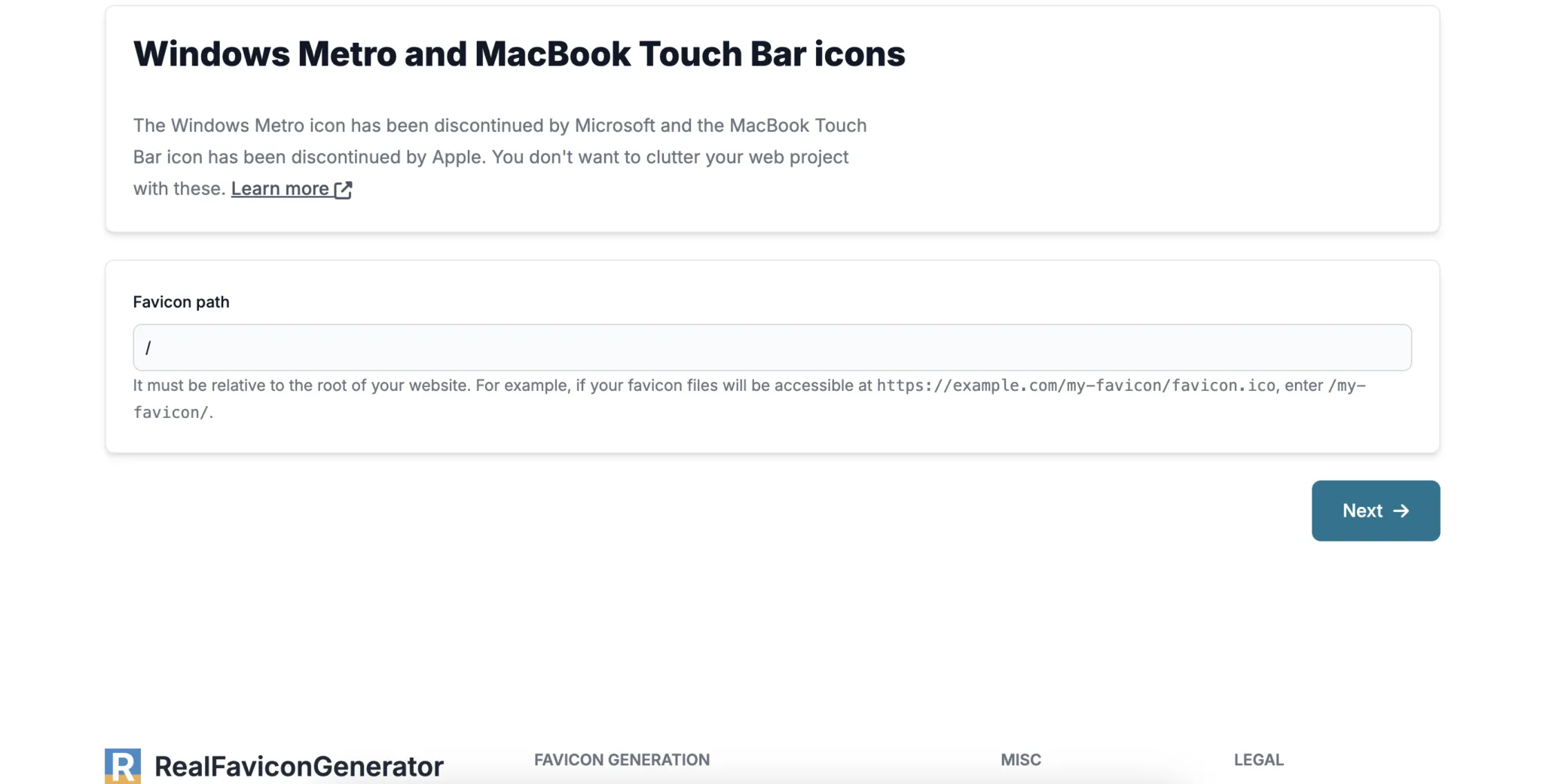
-
Click on Next.
-
Download your favicon package. NOTE: Leave this webpage open, because we will need the HTML-code later.
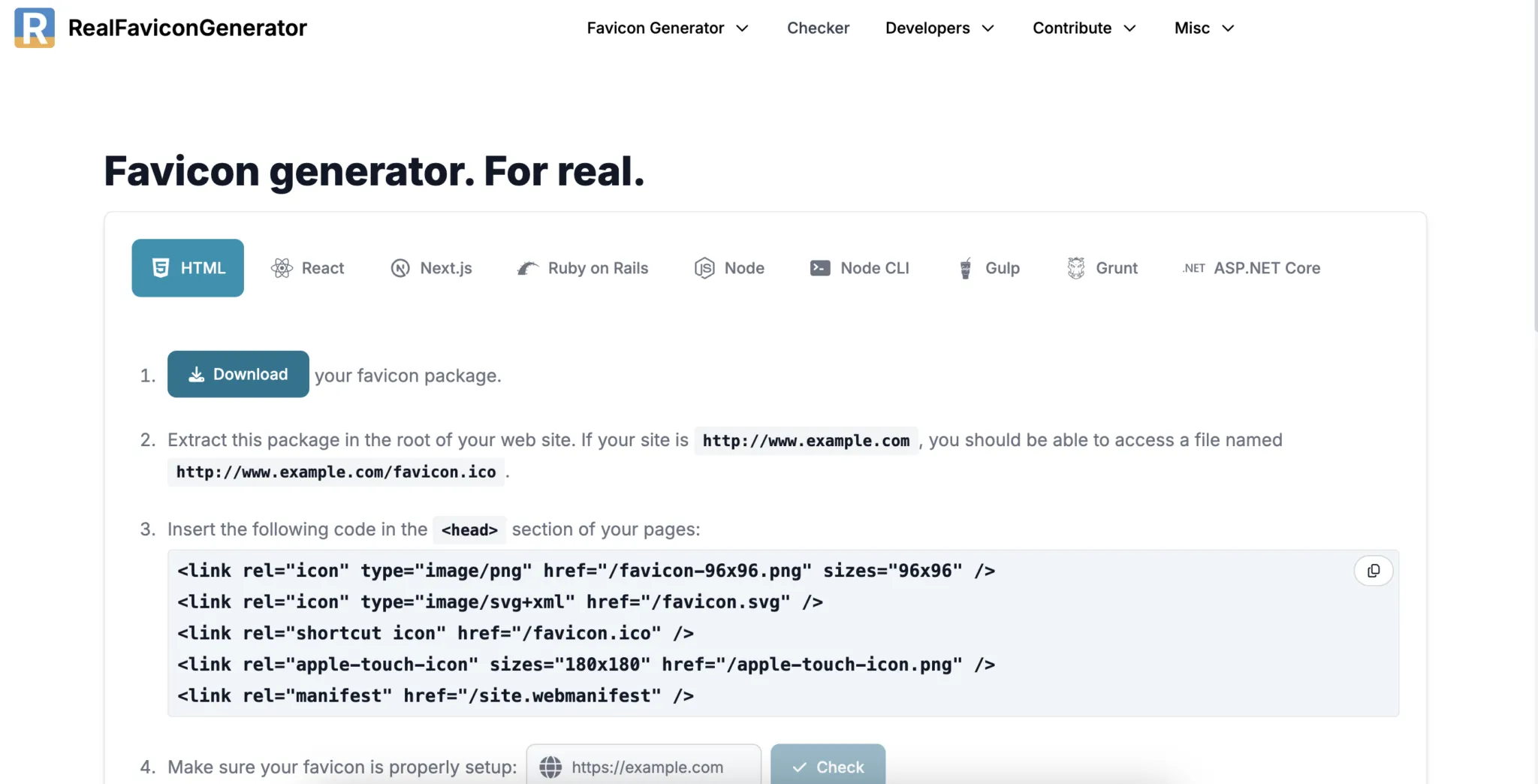
- Exctract the favicon.zip in your Finder (Apple) or Explorer (Windows).
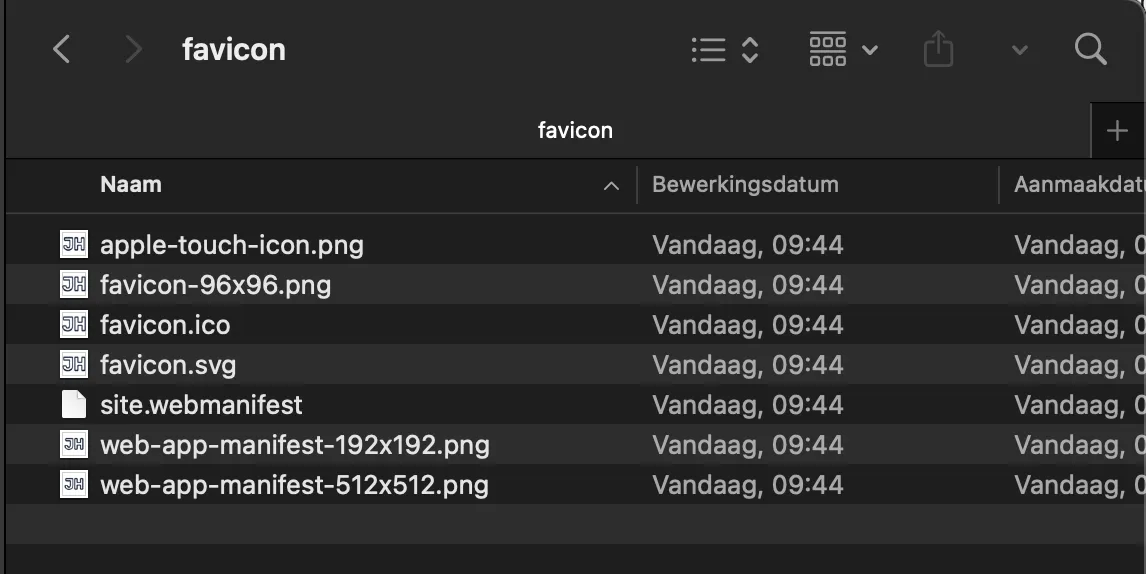
Upload the favicon files to the Root directory of your website
Uploading files to the root of your website is an activity for advanced WordPress users. You can do this through an FTP-connection with your websites server, however in this explanation I will be using the WP File Manager plugin.
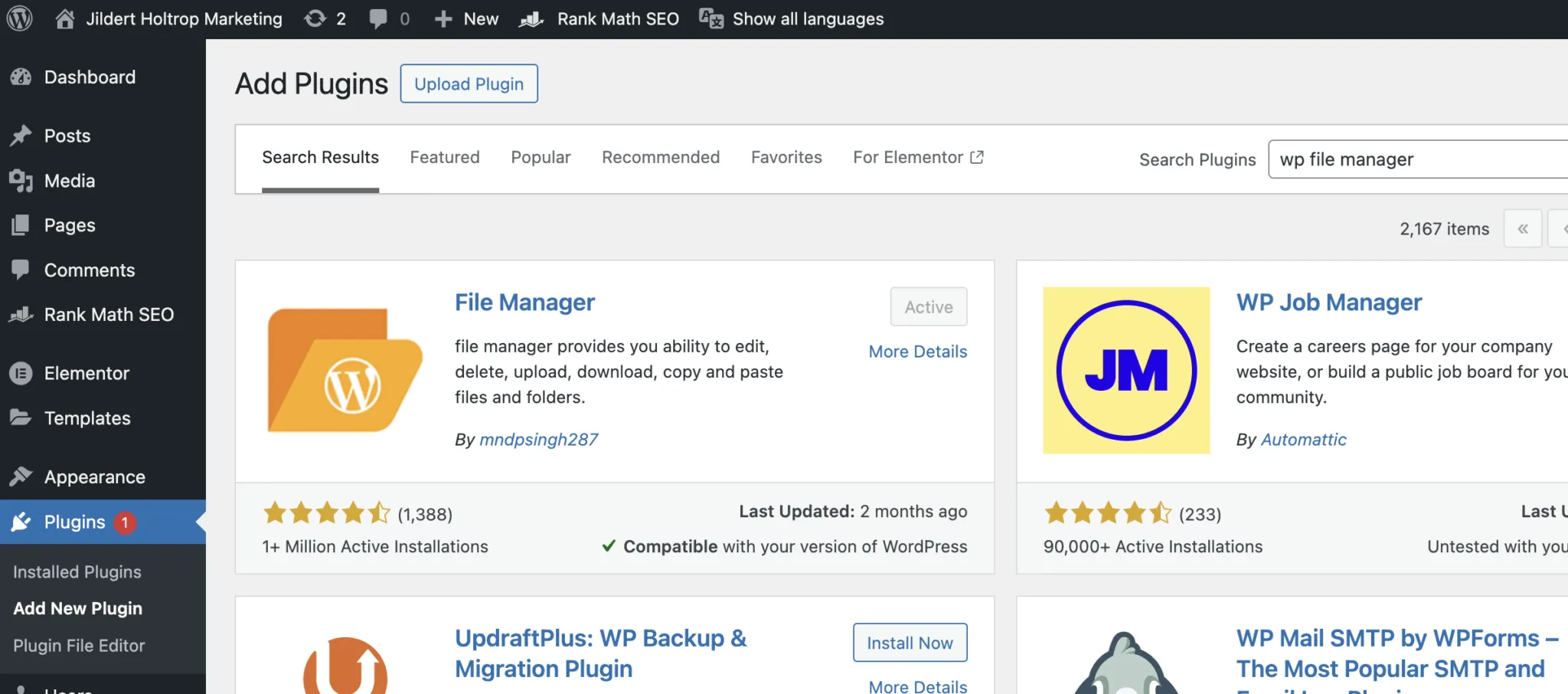
- In your WordPress dashboard, go to Plugins → Add new plugin, and look for WP File Manager
-
Click on Install Now → Activate to install and activate the plugin. You might be prompted with a message that installing the plugin was successful.
-
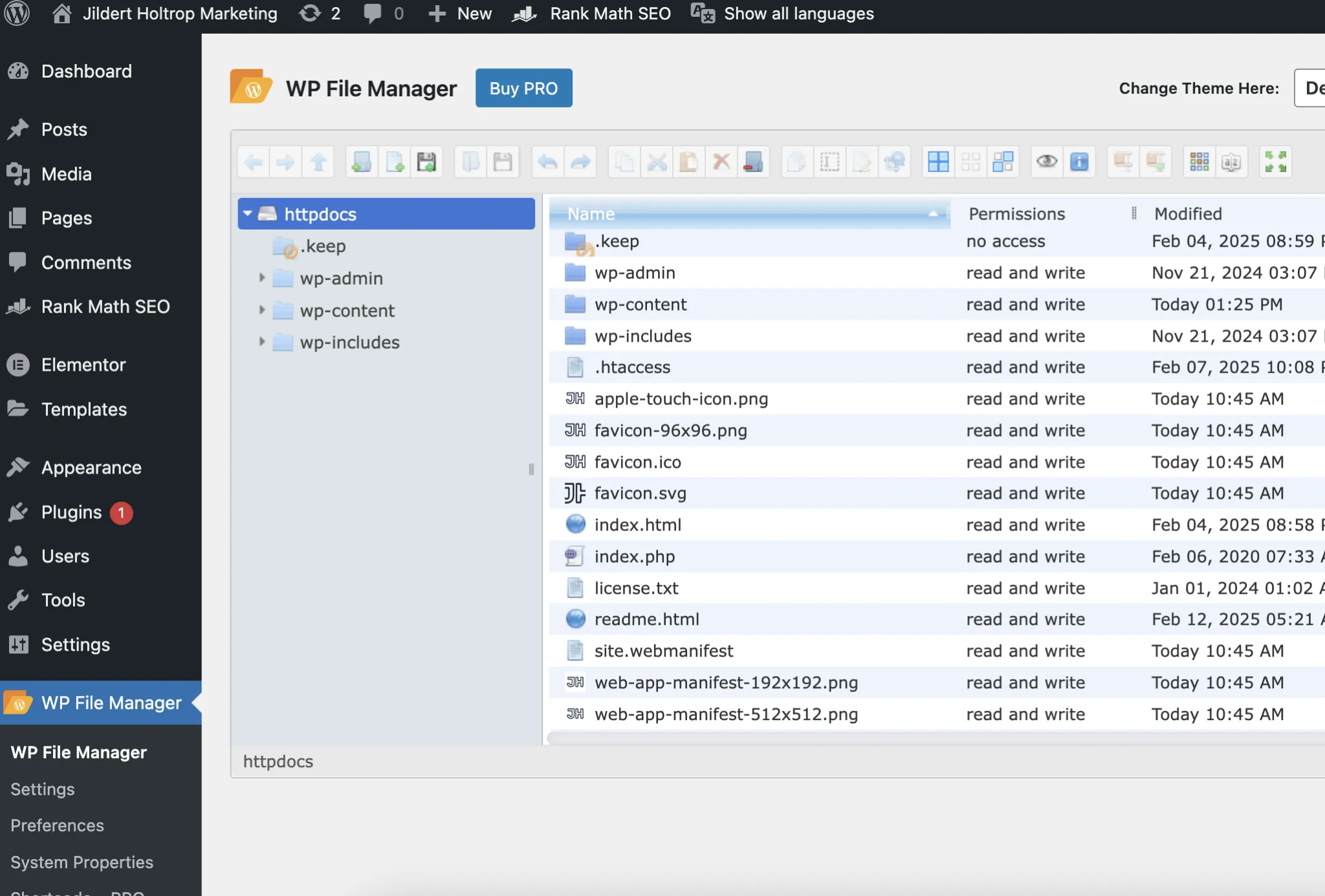
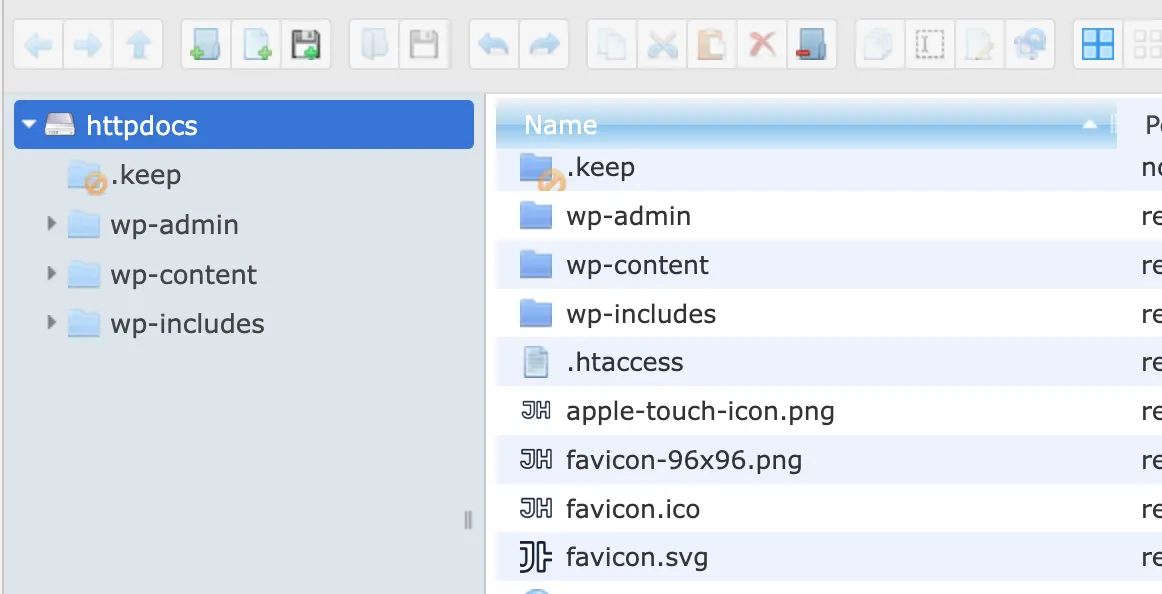
In your WordPress dashboard, go to WP File Manager. Make sure you navigate to the folder where you find the three folders wp-admin, wp-content and wp-includes. This is the Root directory of your website.
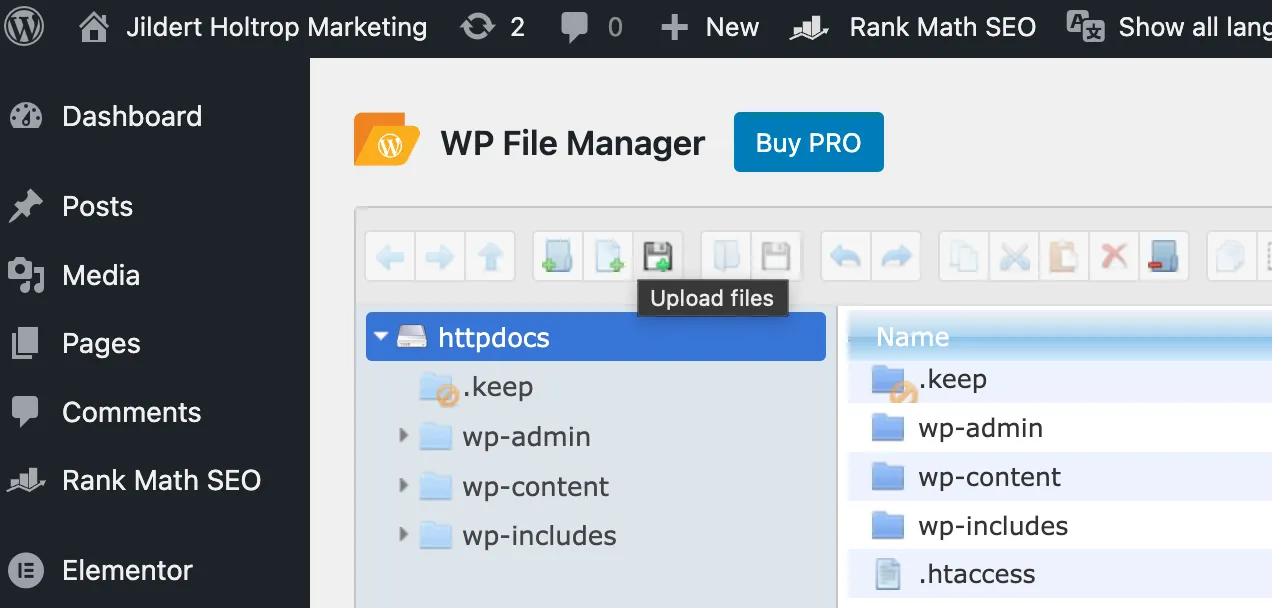
- Click on the Upload files icon. It looks like a black and white floppy disk with a green ‘+’ -icon.
-
Now Upload the files in the favicon folder that you downloaded before. Make sure to not upload the folder, but only the files that are in the folder.
-
You will now see the files listed. Double check that all files have been uploaded.
Place the HTML to the < head> of your website
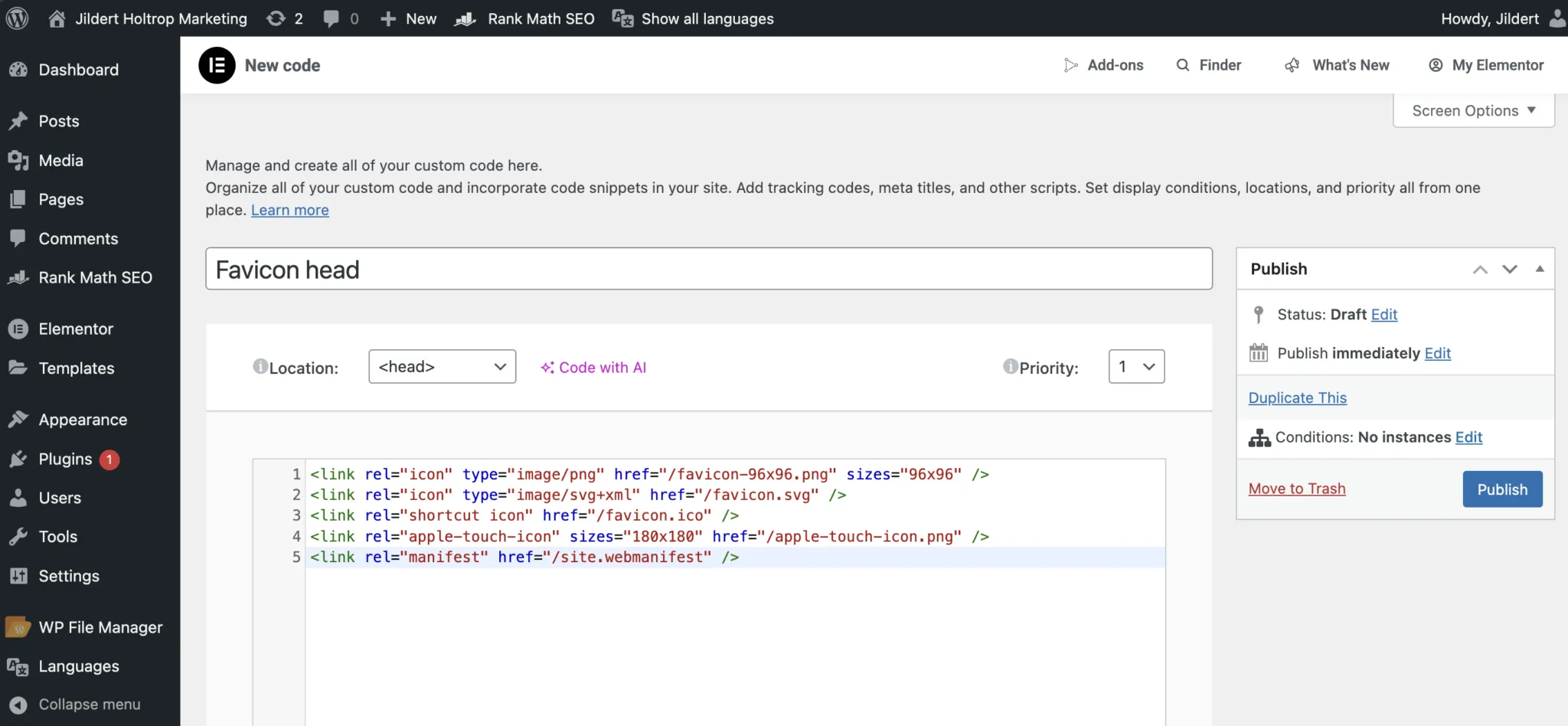
In this explanation I will be using the Elementor Custom Code functionality to add the code to the head of your website.
If you are not an Elementor user, you can use a plugin like Code Snippets to easy inject the code. Another possibility is directly editing your theme’s header.php before the closing < /head> tag.
- In your WordPress dashboard, go to Elementor → Custom Code.
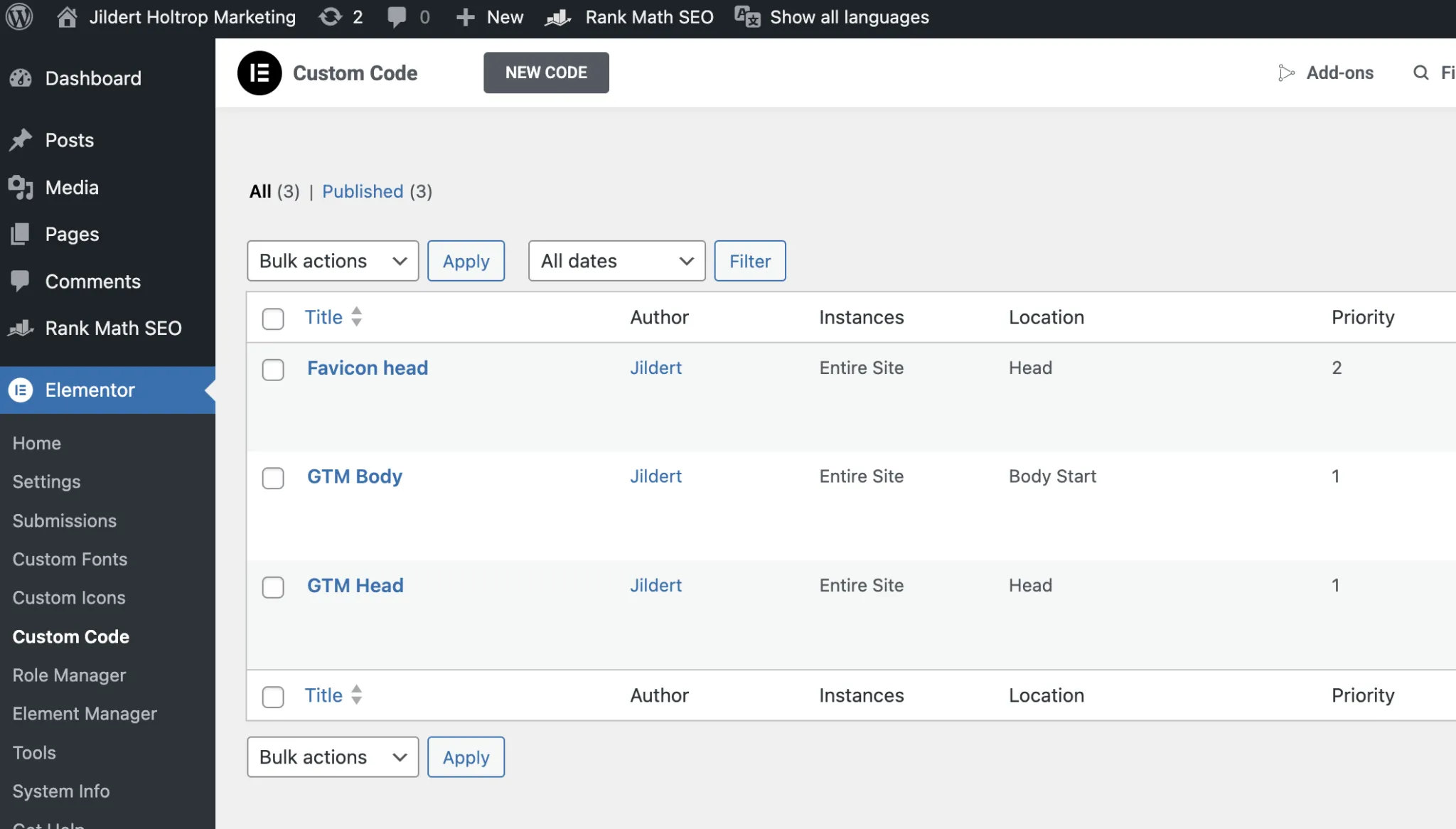
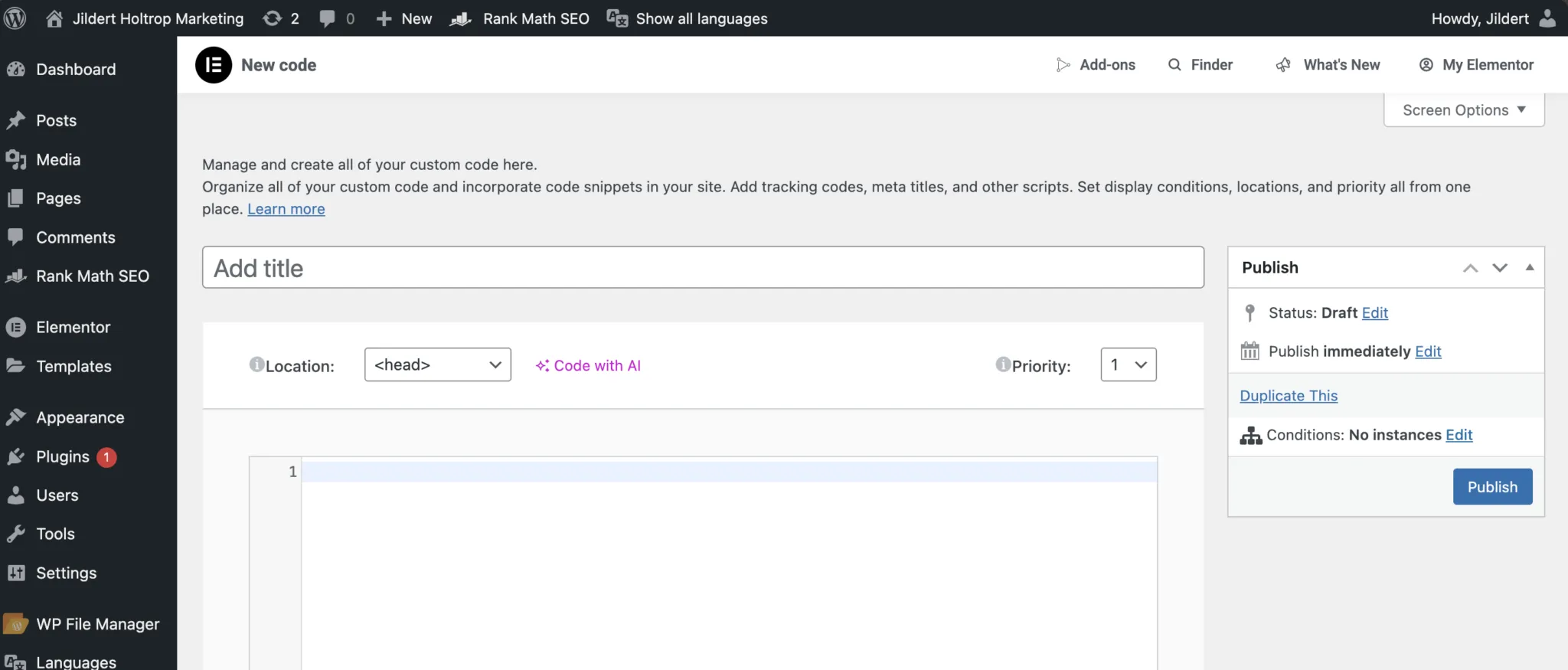
- Click on New Code.
- Copy the HTML code from realfavicongenerator.net that we created earlier.
- Paste the code in the editor field of your Elementor Custom Code.
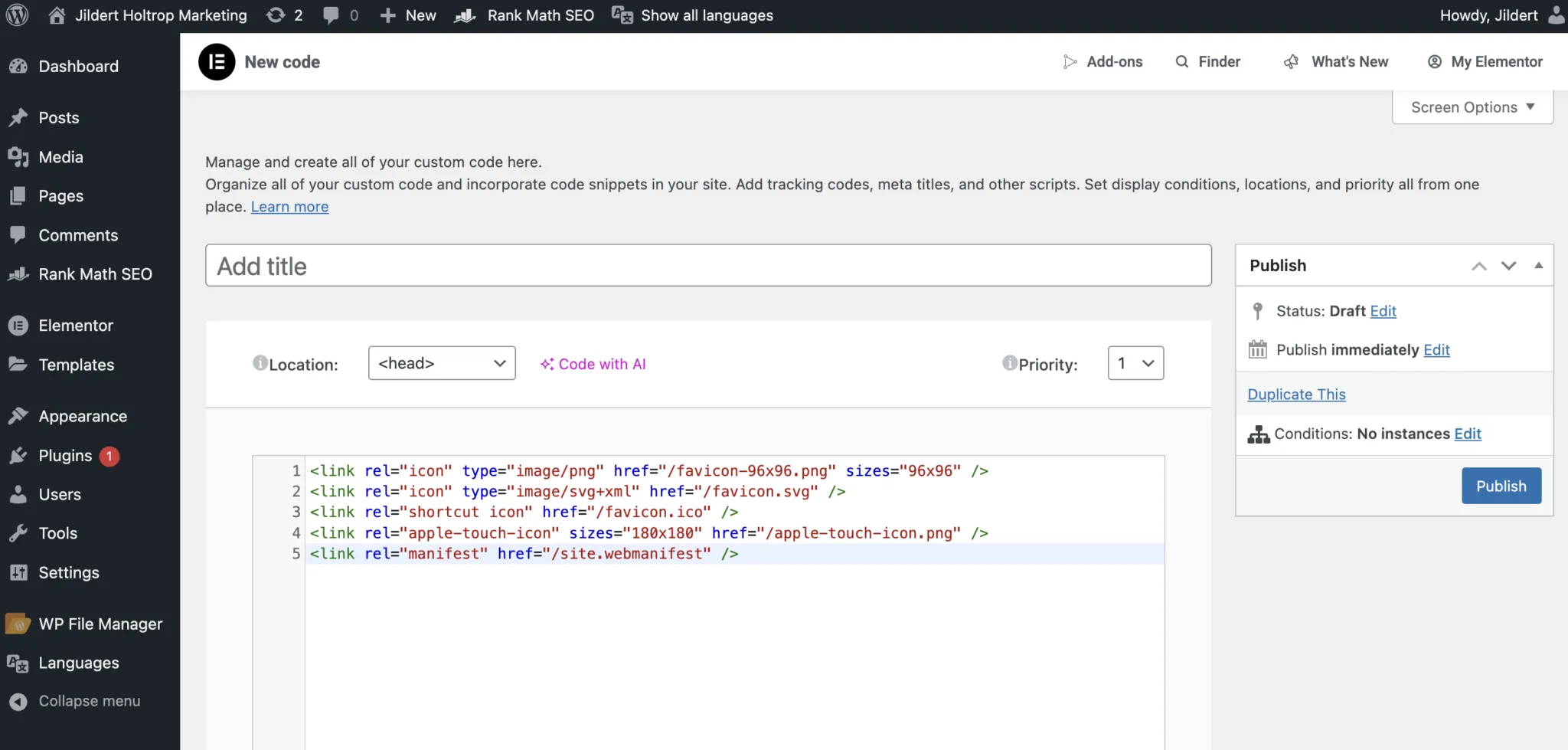
- Make sure < head> is selected as location, and change the title to Favicon head for example. Now click Publish.
Test the favicon of your WordPress website
Congratulations! You installed your own custom favicon on your WordPress website. To make sure everything is setup correctly, you can use the favicon checker from realfavicongenerator.net to check whether everything is working right.
What I have found is that when I used method 1 or method 2 to install the favicon, RealFaviconGenerator didn’t recognize the icons. The reason for this is that RealFaviconGenerator, just like various browsers and search engines, looks for the favicon.ico files in the root of your website. For example jildertholtrop.com/favicon.ico. When using method 1 or method 2, you will not find the files there. You can test this yourself by typing in https://yourdomain.com/favicon.ico in the address bar of your browser.
Frequently Asked Questions
- Only when you rebrand or change your logo. Otherwise, consistency helps with recognition.
- Some modern browsers support SVG favicons, but for maximum compatibility, stick with .png and .ico formats.
- Try clearing your browser cache, site cache, and CDN cache if you’re using one. It can take time for changes to propagate.
- Since a favicon should not be changed too often, Google only sporadically re-crawls your website for favicon. It is a matter of patience before your new favicon shows online. Would you like to speed-up the process? Use method 3 to change the favicon on your website.
- Google only sporadically re-crawls your website for updates in the favicon, so it is only a matter of time. Use method 3 to be fully prepared for the crawlers to scan your website.